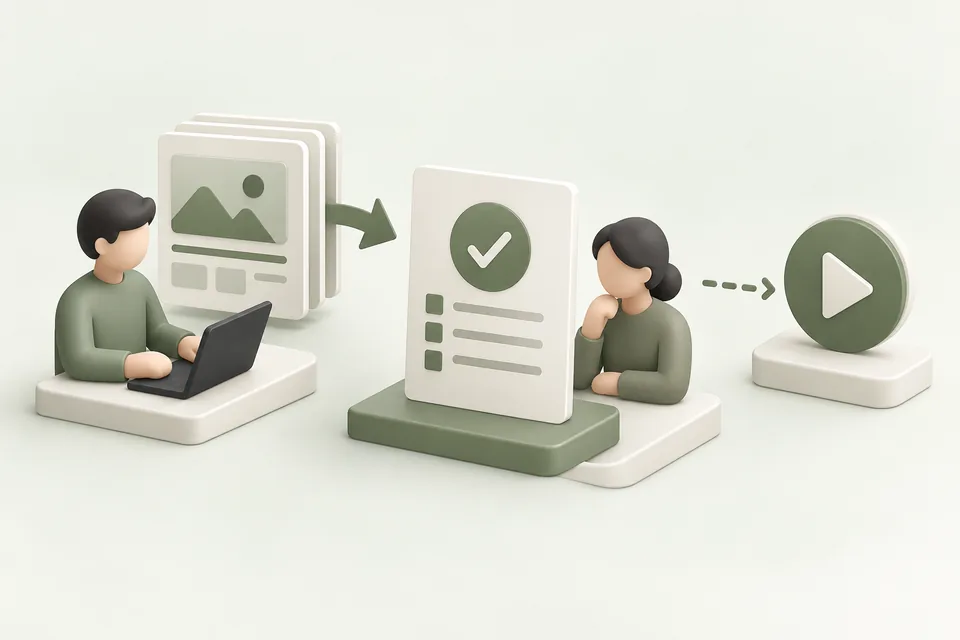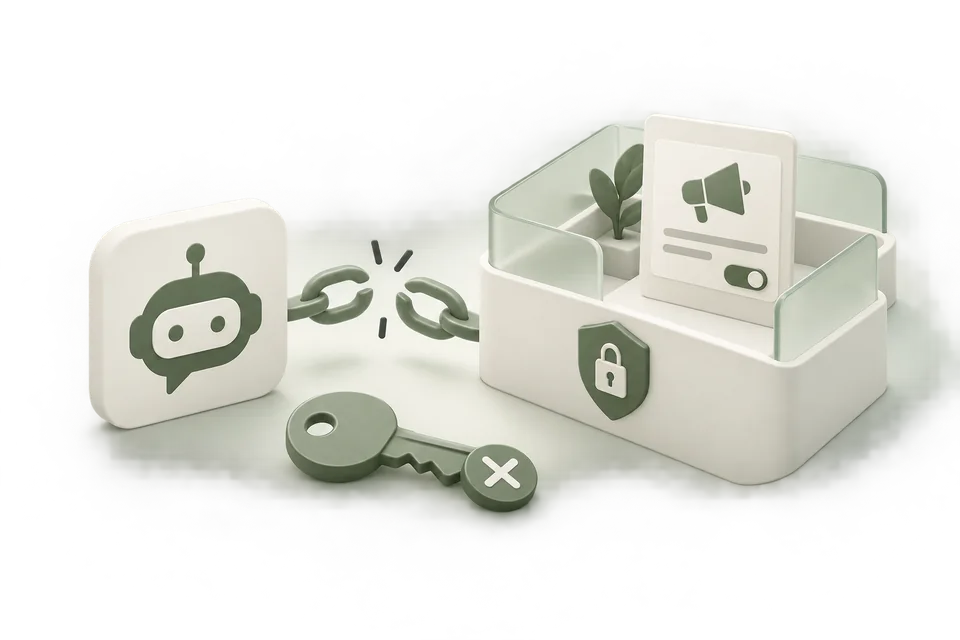
Advarde connects ChatGPT to your OpenAI Ads accounts through MCP. Use it to inspect campaign data, save campaign drafts, prepare reviewed changes, and retrieve conversion installation guides. The same saved work is available in the Advarde browser workspace.
This is useful for marketers who want to work from a brief or ask questions about an account while keeping the settings and results available for review. You need an eligible advertiser account and access to custom MCP connections in your ChatGPT account or organization.
What do I need before connecting?
Create an Advarde workspace and connect the advertiser account you are authorized to manage. Start with read access. The three accounts below have different purposes; a ChatGPT subscription or a model API key does not supply advertiser access.
| Requirement | What it provides |
|---|---|
| Advarde workspace | Saved work, team permissions, connected advertiser accounts, and MCP access. |
| OpenAI Ads account and advertiser API credential | Access to the advertiser’s campaigns and reporting. Add this credential in Advarde’s account settings. |
| ChatGPT with custom MCP access | The assistant interface. Your account and organization policy determine whether you can add the connection. |
How do I connect ChatGPT to Advarde?
Use the server URL shown in Advarde’s MCP connections screen and authorize with OAuth. OpenAI’s connection instructions were checked on 12 September 2026; settings can differ by account and workspace policy.

- In Advarde, open MCP connections and copy the complete server URL, including /mcp.
- In ChatGPT, open Settings → Security and login and enable Developer mode if your account permits it.
- Open ChatGPT Plugins, select the plus button, name the connection Advarde, and enter the copied public HTTPS MCP URL.
- Complete OAuth sign-in with Advarde and select the intended workspace. Review the requested permissions.
- Review the discovered tools. Start a new conversation and add the Advarde connection from the tools menu.
- Run the account-list prompt below and confirm the account, currency, and timezone before asking for changes.
What should the first successful request return?
Ask ChatGPT to call ads_list_accounts. A successful result identifies the accounts connected to the authorized workspace. Confirm the Advarde account ID, currency, timezone, and write setting. An empty list means there is no visible connected account; it is not evidence of zero campaigns or spend.
The screenshot above is an actual Advarde screen from a local rehearsal. The prompts below use implemented MCP tools; they are examples to test in your own ChatGPT connection, not a transcript from a live advertiser account.
Use Advarde to list the connected advertising accounts.
Show the account ID, name, currency, timezone, and whether writes are enabled.
If the result is empty or simulated, say so.
Do not change anything.
Which advertising tasks can I ask ChatGPT to do?
Give each request a selected account and an explicit result. Reports need a date range; campaign drafts need an approved offer, destination, budget, and locations. Missing inputs should remain questions rather than becoming invented settings.
| Example request | Result to inspect |
|---|---|
| Report spend and clicks for my selected account from 1–7 September 2026. State the timezone and missing fields. | A report with the account, period, currency, source metrics, and gaps. Check the returned fields before accepting an interpretation. |
| Save a campaign draft from this approved brief, then validate it. Leave any missing destination or budget unresolved. | A saved draft and validation blockers. Saving a draft does not create or activate an ad. |
| Prepare this validated draft for review and show the account, budget, targeting, dates, and creative. Wait before applying. | A proposal for the exact draft revision. After authorized creation, new resources remain paused until a separate launch review. |
| Read my saved conversion setup and retrieve its website installation guide. Explain the successful action that should trigger each event. | The selected source and generated implementation instructions. Installing code and checking live events are separate tasks. |
Why can I read an account but not change it?
Writes require a writable workspace role, write scope, an advertiser connection with writes enabled, and an active subscription. The assistant must prepare and apply a reviewed change through those controls. A prompt cannot grant missing permissions.
| Symptom | Next check |
|---|---|
| No custom connection controls | Check ChatGPT account and organization policy against OpenAI’s current instructions. |
| Cannot connect or discover tools | Recopy the complete HTTPS MCP URL. Complete OAuth; after a server update, refresh connection metadata and start a new conversation. |
| No accounts or the wrong account | Check the workspace selected during OAuth and the advertiser connections in that workspace. |
| Read works; write is denied | Ask the workspace owner to inspect role, scopes, account write settings, and usage. |
| A prepared change is stale or expired | Prepare the current draft again and review the new proposal. |
| An apply result is uncertain | Inspect the saved change and platform state before retrying. A retry can otherwise duplicate work. |
Which other assistants and authentication methods are supported?
Advarde exposes a remote Streamable HTTP MCP endpoint with OAuth authorization code and PKCE. Compatible Claude and Codex clients can use it too. Bearer workspace tokens are available for clients that support token authentication; use OAuth for the ChatGPT flow described here.
Revoke assistant authorizations or workspace tokens in MCP connections when access should end. Revocation does not pause live campaigns or rotate the upstream advertiser credential. Advarde is independent software and does not grant OpenAI advertiser eligibility.
Common questions
Can ChatGPT launch ads through Advarde?
With the required permissions and your authorization, it can apply a reviewed campaign build. New resources are created paused. Activation is a separate reviewed action; an active status does not prove that ads are delivering.
Do I paste my advertiser API key into ChatGPT?
No. Store the advertiser credential in the Advarde account connection. Connect ChatGPT to Advarde with OAuth and choose the intended workspace.
Does Advarde include my ChatGPT subscription or ad spend?
No. Advarde is a separate workspace subscription. Your assistant access and advertising spend are separate.
Sources and verification
Platform details checked on September 12, 2026. Your account may expose a different set of features. Examples are illustrative unless a dataset is explicitly supplied.