
Check the installation
See whether the SDK function or an OpenAI pixel resource is visible, and inspect the pixel IDs observed on this page.
Free Chrome extension / Manual installation
Want to know if your ChatGPT Ads pixel is firing? Install the helper, start inspection, complete one test action, and it shows the pixel ID and event name it observed. If nothing appears, follow the missing-event checklist; if a call appears, confirm receipt in your conversion setup.
No account required. Manual installation in desktop Chrome; mobile Chrome cannot load this extension.
store.example.com
pixel_example_storepage_vieweditems_addedcheckout_startedObserved in this tab. Receipt and attribution are checked separately.
See whether the SDK function or an OpenAI pixel resource is visible, and inspect the pixel IDs observed on this page.
Start inspection, perform a test action, then see the event name and time. Keep watching while the popup is closed.
No account, analytics, or external requests from the extension. Export a local report with no event payloads or customer identifiers.
Manual installation
The ZIP includes the extension and an installation guide. Extract it, then load the folder in Chrome. No account or Chrome Web Store registration needed.
Download the ZIPCopy this address into Chrome’s address bar:
chrome://extensionsOn Mac, double-click the ZIP. On Windows, right-click it and choose Extract All. Keep the chatgpt pixel helper folder somewhere permanent, such as Documents. Chrome needs these files to remain there.
Type or paste chrome://extensions into the address bar in desktop Chrome, then press Enter.
Use the Developer mode switch in the top-right corner. Chrome will show the Load unpacked button.

Select the extracted chatgpt pixel helper folder that contains manifest.json. Choose the folder itself, not the ZIP. ChatGPT Pixel Helper by Advarde will appear in your extensions.
Open Chrome’s puzzle-piece Extensions menu and pin ChatGPT Pixel Helper. Visit your website, click the helper, and perform a test action. Reopen the popup to review calls or export observations. After reloading the website, click the helper again to start inspection.

Try it before inspecting your site
Open our demo in desktop Chrome after installing the helper. Allow the demo’s simulated consent, confirm a synthetic booking, then reopen the extension to see one appointment_scheduled call. Try a rejected booking or repeat the callback to see why neither should add a completed-action call.
The demo runs in page memory with a synthetic SDK. No booking is made and no event is sent to OpenAI. It demonstrates local calls, not platform receipt or attribution.
Open the interactive booking demo →Your first inspection
Choose a booking, accepted form, or test order your team permits. Note its expected event name and pixel ID. The helper observes your implementation; it does not create test conversions or grant consent.
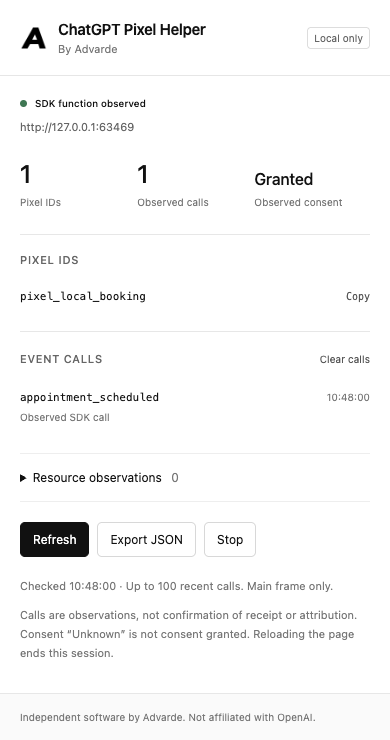
Open the page in desktop Chrome and click the helper before the test. Use a normal website tab; protected browser pages and separate iframe checkouts cannot be inspected.
Check the observed pixel ID against the expected setup. “Unknown” consent means the helper has not observed that call; it does not mean consent is granted. Earlier calls may already have left the SDK queue.
Return to the website and finish one new successful action. Let the site use the real consent decision. Inspection continues while the popup is closed. A rejected action should not create a completed-action event.
Look for the expected event name and observed time. If you reloaded the website, open the helper again before repeating the action. Use Export JSON when you need a local record; event payloads and customer identifiers are excluded.
No call points you toward the trigger and consent checks. An observed call points you toward the expected source and recent receipts. Stop inspection when you are finished.
After inspection
Verify that the business action succeeded, then inspect its trigger and consent. Our booking example shows how a page-load trigger can miss an in-app confirmation.
Diagnose a missing eventMatch the installed pixel with your account’s conversion setup. In Advarde, open the setup, choose Test events, and check the recent browser receipt sample after your action. An observed call alone does not establish receipt or attribution.
Open conversion setupChoose the business event and tracking source, install the generated website or tag-manager instructions, and connect the real consent decision before retesting.
Full GTM install guide Scan page HTML with the pixel checker Follow the setup guideThe September 13 automated rehearsal checked the downloadable archive, unchanged extension permissions, unpacked loading, first inspection, and local JSON export. It did not measure a new user’s installation experience or test platform acceptance. Read the test and its limits.
A few useful answers
Updates are manual. Download the latest ZIP, extract it, and replace the extension files in the same folder you originally loaded. Open chrome://extensions and click Reload on ChatGPT Pixel Helper. Reload your website, then open the helper again.
Extract the ZIP first. In Load unpacked, select the chatgpt pixel helper folder containing manifest.json, popup.html, and the other extension files. If you see another folder inside your extracted download, open it to find the extension folder.
Open chrome://extensions, find ChatGPT Pixel Helper by Advarde, and click Remove. Reload any website tabs you inspected to end their observation sessions. You can then delete the extracted folder.
It means the helper observed a browser call or resource. It does not prove OpenAI accepted the event or attributed a conversion. Confirm recent event receipts and reporting in your advertiser account or Advarde.
The helper can read calls still in the SDK queue and calls made after inspection begins. A loaded SDK may already have consumed earlier initialization or consent calls. Unknown means those values were not observed.
The helper observes the existing SDK function while preserving its arguments, return values, and errors. It does not send test conversions, set consent, or read customer fields. Stop inspection or reload the page to remove the observation hooks.
Normal HTTP and HTTPS pages in Chrome. Browser settings, the Chrome Web Store, and other protected pages cannot be inspected. This release observes the main frame, not separate iframe checkouts.
No. It’s an independent Advarde tool for the OpenAI Measurement Pixel used by ChatGPT Ads; it works the same way (observe calls in your tab) but reads a different SDK.
Publish or preview the GTM container, load your site in a normal Chrome tab, start the helper, then do the test action. For GTM-specific failure modes, see the GTM install guide.
Installation follows Chrome’s Load unpacked instructions. Built against the OpenAI Measurement Pixel documentation. An independent tool by Advarde.
Chrome screenshots © Google, from the Chrome for Developers guide, used unchanged under CC BY 4.0. Chrome’s appearance may vary by version and operating system.