Connect ChatGPT, Claude, Codex, or another compatible MCP client to the correct Advarde workspace.
1. Open AI assistants
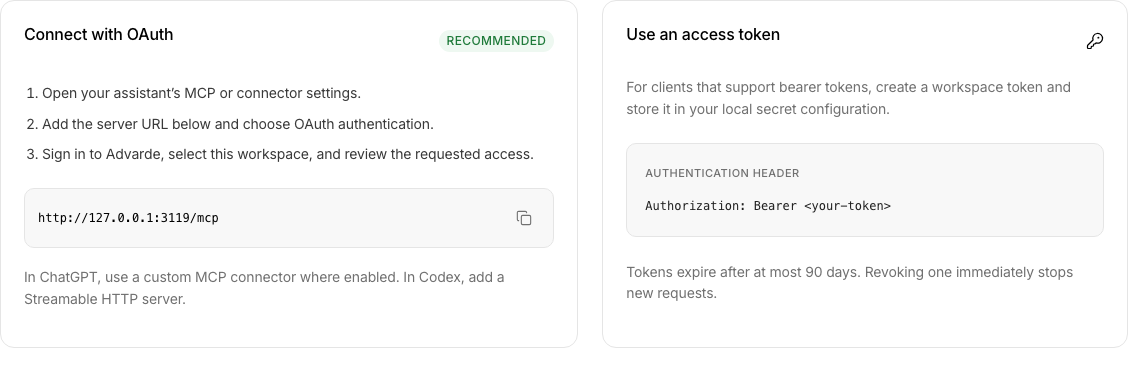
In the sidebar, open Tools → AI assistants. Choose Connect an assistant to follow the guided setup, or use the connection information on the page. Copy the server URL shown by Advarde.
2. Authorize the connection
In your assistant client, add the server URL and select OAuth authentication when available. Follow its sign-in flow. On Advarde’s authorization screen, confirm the workspace and requested permissions before authorizing. Use the client-specific setup instructions if its menus differ.
3. Verify with a read
Ask the assistant to list the connected advertiser accounts and confirm the intended account and currency. If using the guided setup, run its connection check. Prepare a draft only after confirming the workspace. Live writes still depend on your role, workspace access, account settings, and the required review.
Manage access later
Return to AI assistants to inspect connections and tokens. If your client uses a manual token, treat it as a secret and select only the access it needs. Revoke an obsolete connection or token when it is no longer needed. Connecting an assistant is optional; the Advarde browser app remains available.