
Read campaign performance, compare dates, and export the displayed results without confusing missing data with zero.
1. Choose the account and dates
Open Overview for a summary or Campaigns for resource-level results. Select the intended account and reporting period. If the period includes today, treat the current day as incomplete. Use a comparable previous period when evaluating a change.
2. Inspect the right level
In Campaigns, move between campaigns, ad groups, and ads. Show performance if metrics are hidden. Review spend alongside clicks and available conversion results. A campaign total and a single ad row describe different scopes.
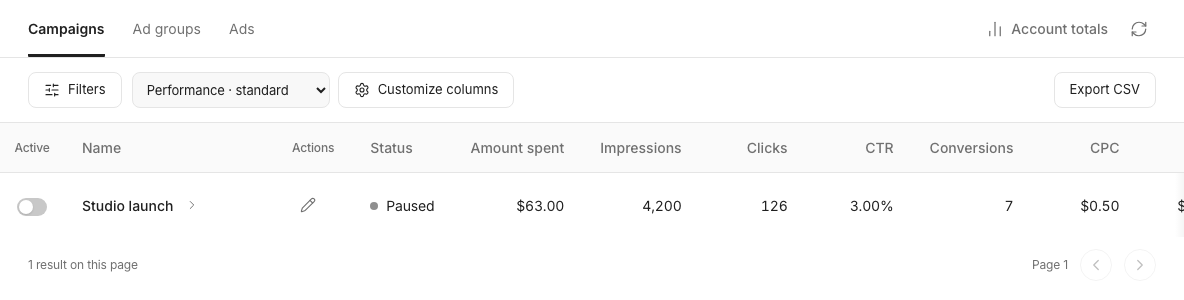
3. Check completeness before exporting
Read any partial-report or unavailable-data message. A missing metric is not evidence of zero performance. Adjust the displayed columns as needed. Export page CSV downloads the filtered current page; it is not an export of every page in the account.
Use the result for your next decision
Record the account, dates, and conversion definition with your analysis. Investigate tracking before changing budgets solely because conversions are absent. Use Reports when you need a saved or recurring reporting workflow.