
Find a campaign, ad group, or ad, prepare the intended change, and check its result after approval.
1. Find the right resource
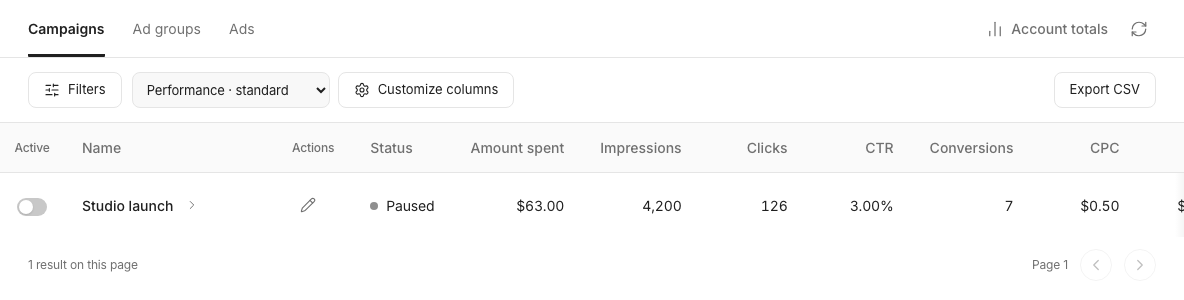
Open Campaigns and select the ad account. Use the campaign, ad group, and ad levels to find the resource. Check the parent campaign and group before editing an ad. Search and status filters apply to the displayed list.
2. Prepare the change
Use the edit control on the row to change supported fields. Campaign and ad-group edits can include names, status, budgets or bids where supported. An ad edit lets you review its copy, destination, and image. Read the validation messages, then prepare the change for review.
3. Review and apply
Inspect the selected account, operation, and final values. Approve and apply only the intended change. A status switch also prepares a reviewed change; it is not an immediate guarantee of activation or pause. If the request fails or its outcome is uncertain, inspect the result and current account state before trying again.
Confirm the result
Refresh Campaigns and check the resource status and values. Provider review or eligibility can still prevent delivery. Pausing a campaign and revoking an AI assistant are separate actions; revoke assistant access separately if that is also needed.