
Define the customer action you want to measure using a website source and an event in Custom Conversions.
1. Open Custom Conversions
In the sidebar, open Tools → Custom Conversions. Choose the intended Ad account, then select Create custom conversion.
2. Add a source if needed
If the account has no website source, enter a Source name and choose Review source. Inspect and approve that change, then return to create the conversion. If sources already exist, select the one that represents the website you are measuring.
3. Define and review the event
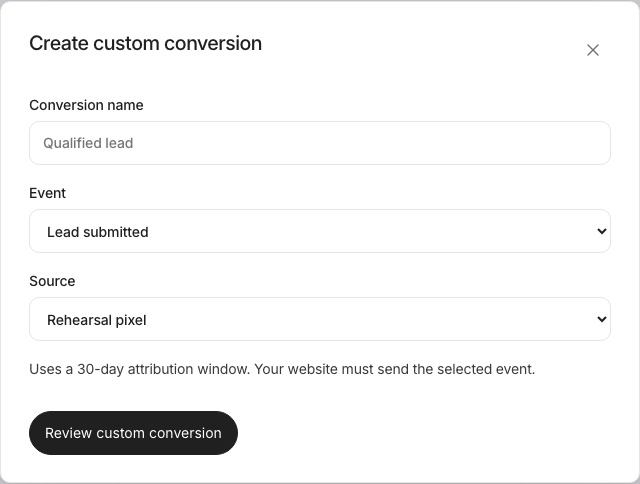
Enter a Conversion name, choose an Event, and select its Source. For a custom event, enter the exact Custom event name sent by your website. Choose Review custom conversion, inspect the proposal, and approve it. This screen uses a 30-day attribution window.
Confirm the definition and tracking
Check that the conversion appears in the list with the expected event, source, and attribution window. Complete the website action in a controlled test and verify the tracking implementation separately. A listed conversion definition does not prove that events are arriving or being attributed.