
Invite a colleague to your workspace and choose the permissions they need to do their work.
1. Open your team
Check the workspace name, then open Settings → Team. Review the current members and seat allowance before inviting another person.
2. Choose the email and role
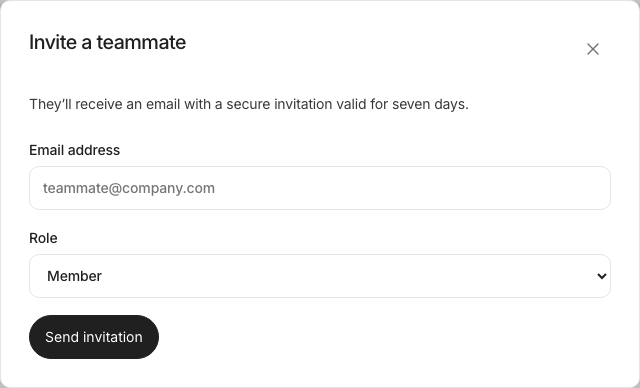
Select Invite teammate and enter their Email address. Choose Viewer for read-only access or Member for operating ads within the workspace’s controls. Owners can also choose Admin for account and invitation management. Billing remains owner-managed.
3. Send and accept the invitation
Choose Send invitation. The recipient uses the email invitation to join; the invitation is valid for seven days. Check the pending invitation list if they have not joined. If an invitation is no longer needed, revoke it from that list.
Confirm and maintain access
After acceptance, confirm that the teammate appears under Workspace members with the intended role. An owner can edit roles. When removing a person, review the confirmation that their workspace and MCP access will be removed. Membership does not grant broader OpenAI advertiser access outside Advarde.